PMS Log
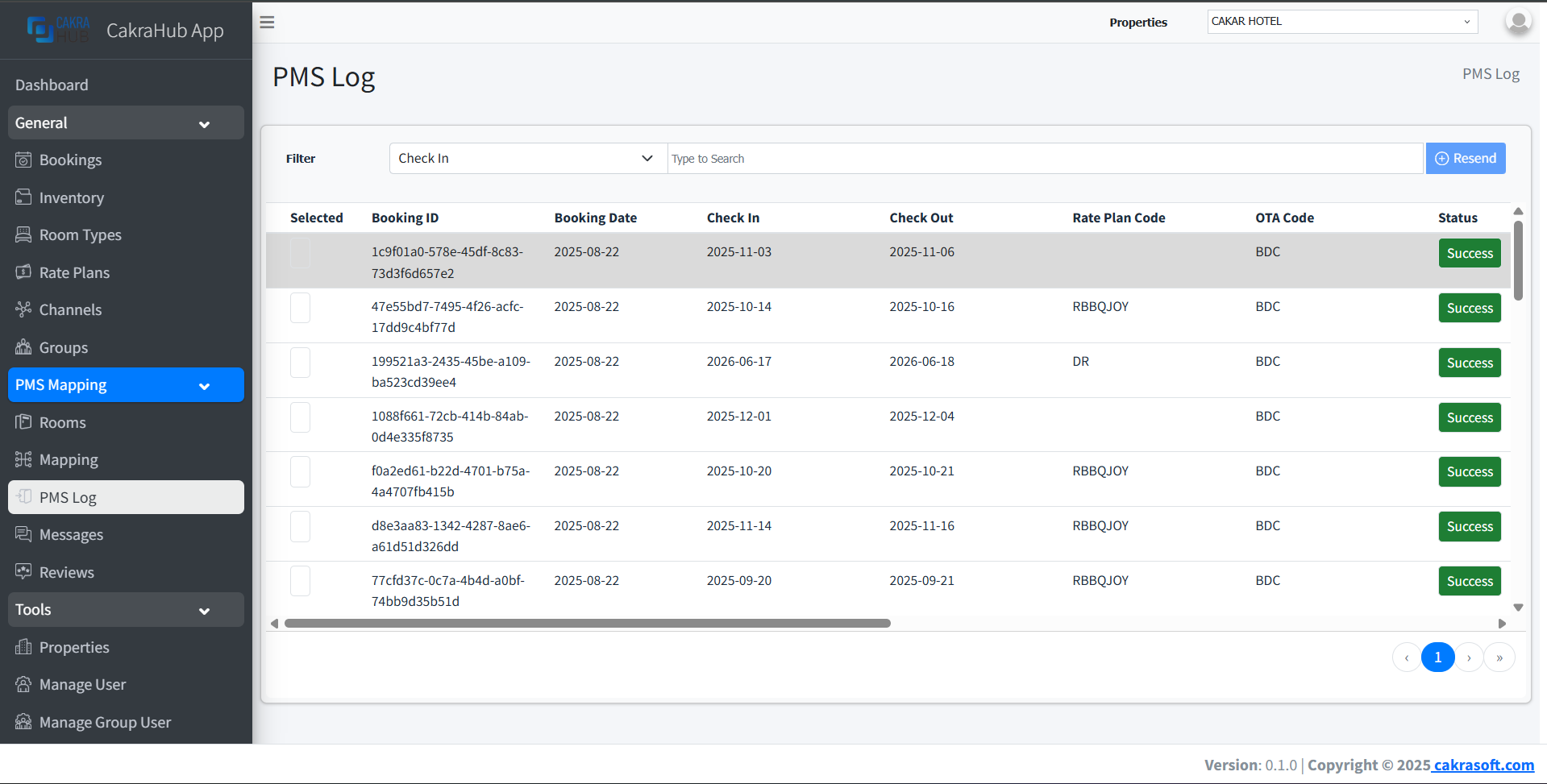
The PMS Log menu is used to monitor booking transmission status from Channel Manager to PMS. With this menu, you can see whether bookings were successful, pending, or failed, making the integration monitoring process more transparent and easy to monitor.
Why is the PMS Log Menu Important?
- Real-Time Monitoring: View booking transmission status to PMS directly
- Process Transparency: Know details of bookings that succeeded, are pending, or failed
- Troubleshooting: Facilitate identification of booking integration issues
PMS Log Management
- View Log
To view booking logs:
- Open the PMS Log menu.
- Select desired filters.
- View booking status (successful, pending, failed) along with details.
Booking Status
Booking status will be displayed in real-time according to transmission results to PMS.
Booking Log Details
- Booking ID: Booking ID sent to PMS
- Booking Date: Date booking was created
- Check-in: Guest check-in date
- Check-out: Guest check-out date
- OTA Code: OTA code
- Status: Success, pending, or failed
- Time Add: Time the booking entered the system
- Time Notify: Time the booking data was sent to PMS
- Time Confirm: Time PMS provided confirmation
Integration with PMS
The PMS Log menu is essential to ensure all bookings sent to PMS are recorded and their status can be monitored. If any issues occur, you can immediately troubleshoot based on the available logs.
Best Practice
Always check the PMS Log regularly to ensure booking integration runs smoothly and no bookings fail.