Room Type
The Room Type menu is the center for managing room types that will be used as the basis for inventory management and distribution to various OTAs. Each room type created will automatically be available in the Inventory menu for availability and price management.
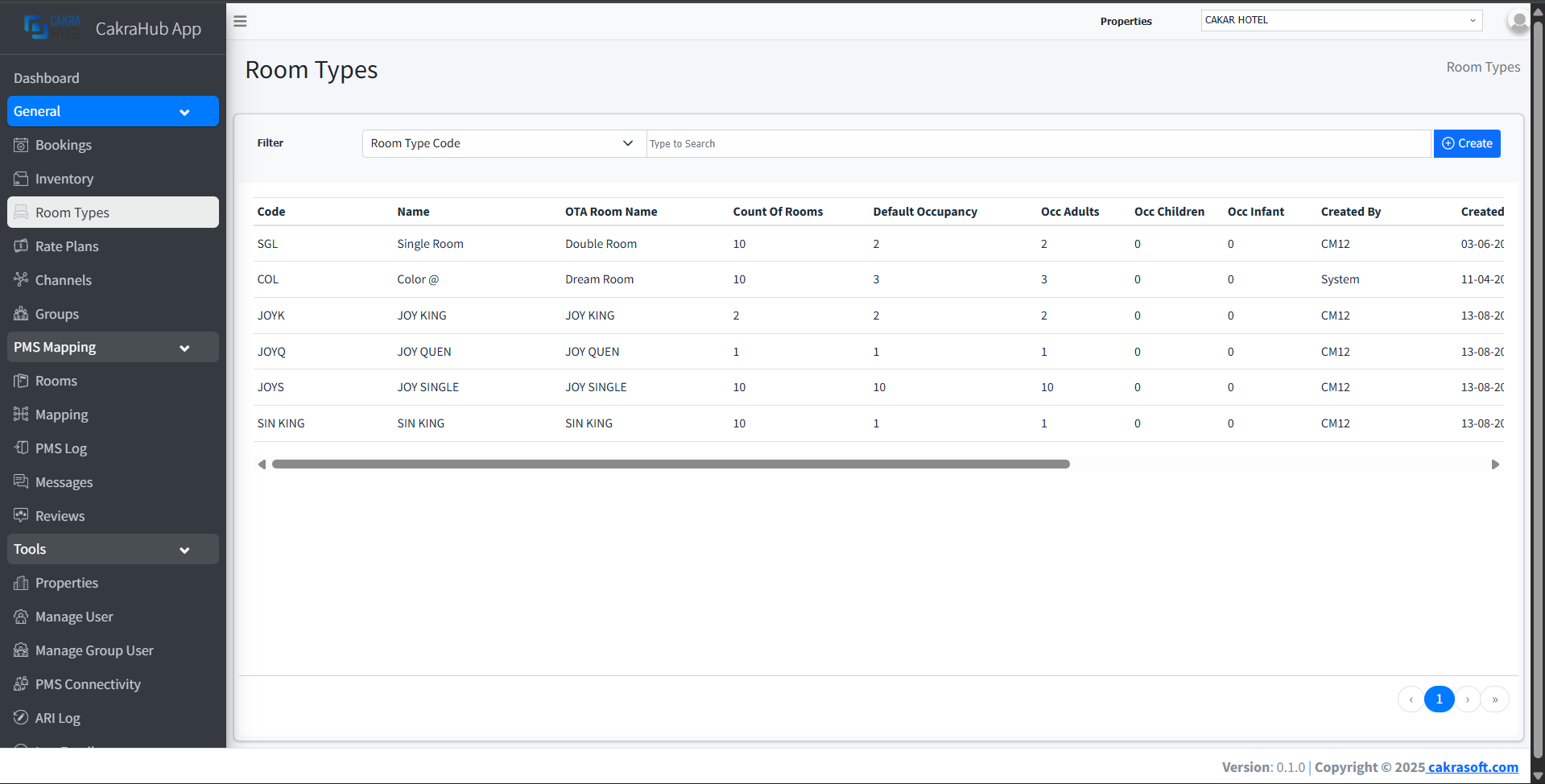
Why is Room Type Important?
Room Type is the main foundation in channel management because:
- Inventory Base: Every room type created will automatically appear in the Inventory menu
- OTA Mapping: Facilitates room type mapping between PMS and various OTAs
- Data Consistency: Ensures room names and categories are consistent across all channels
- Flexibility: Data can be the same as PMS or differentiated as needed
Room Type Management
- Create
- Edit
- Remove
To create a new room type:
- Click the "+ Create" button in the top right corner.
- Fill in the form with the required data.
- Fields with red labels are mandatory - make sure nothing is missed.
- Save, and the room type will automatically be available in Inventory.
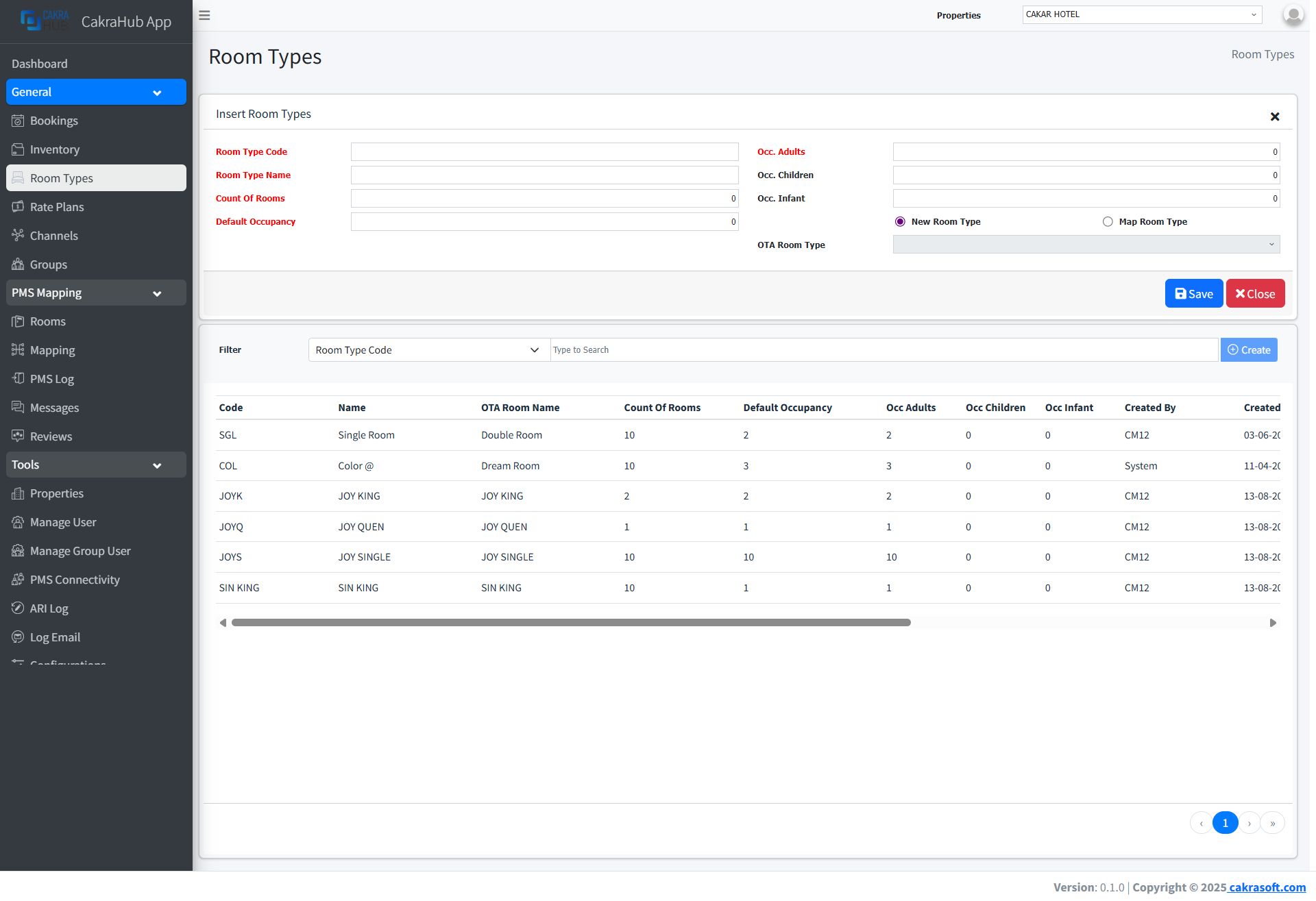
Make sure all fields with red labels have been filled correctly before saving the room type.
To edit an existing room type:
- Click the Edit button on the room type row you want to change.
- Change data as needed (red fields remain mandatory).
- Save changes, data will be updated in all related channels.
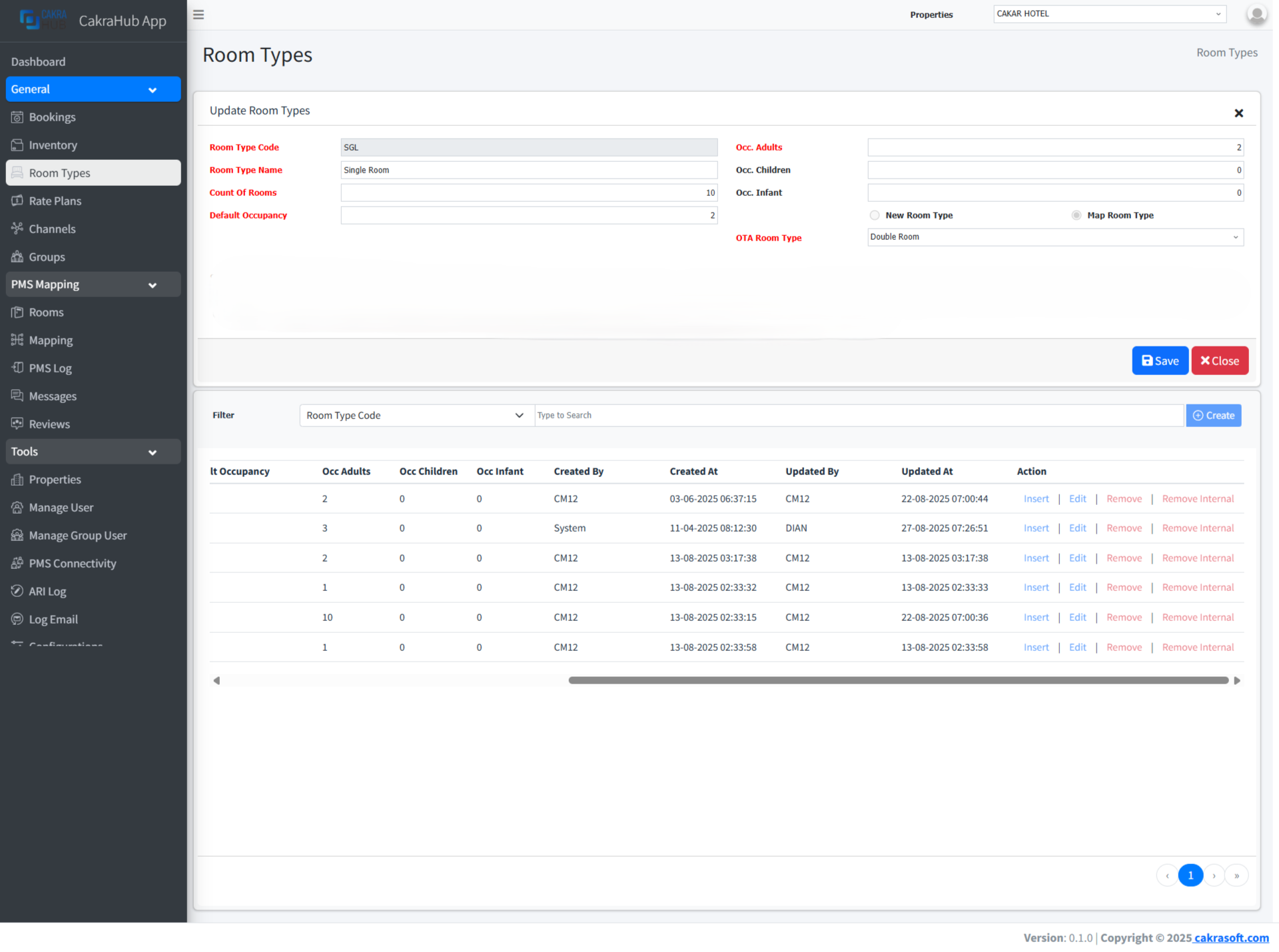
Room type changes will automatically sync to the Inventory menu and all connected channels.
To delete a room type:
- Click the Remove button on the room type row to be deleted.
- Confirm deletion through the dialog that appears.
- Room type will be deleted from the system and no longer available in Inventory.
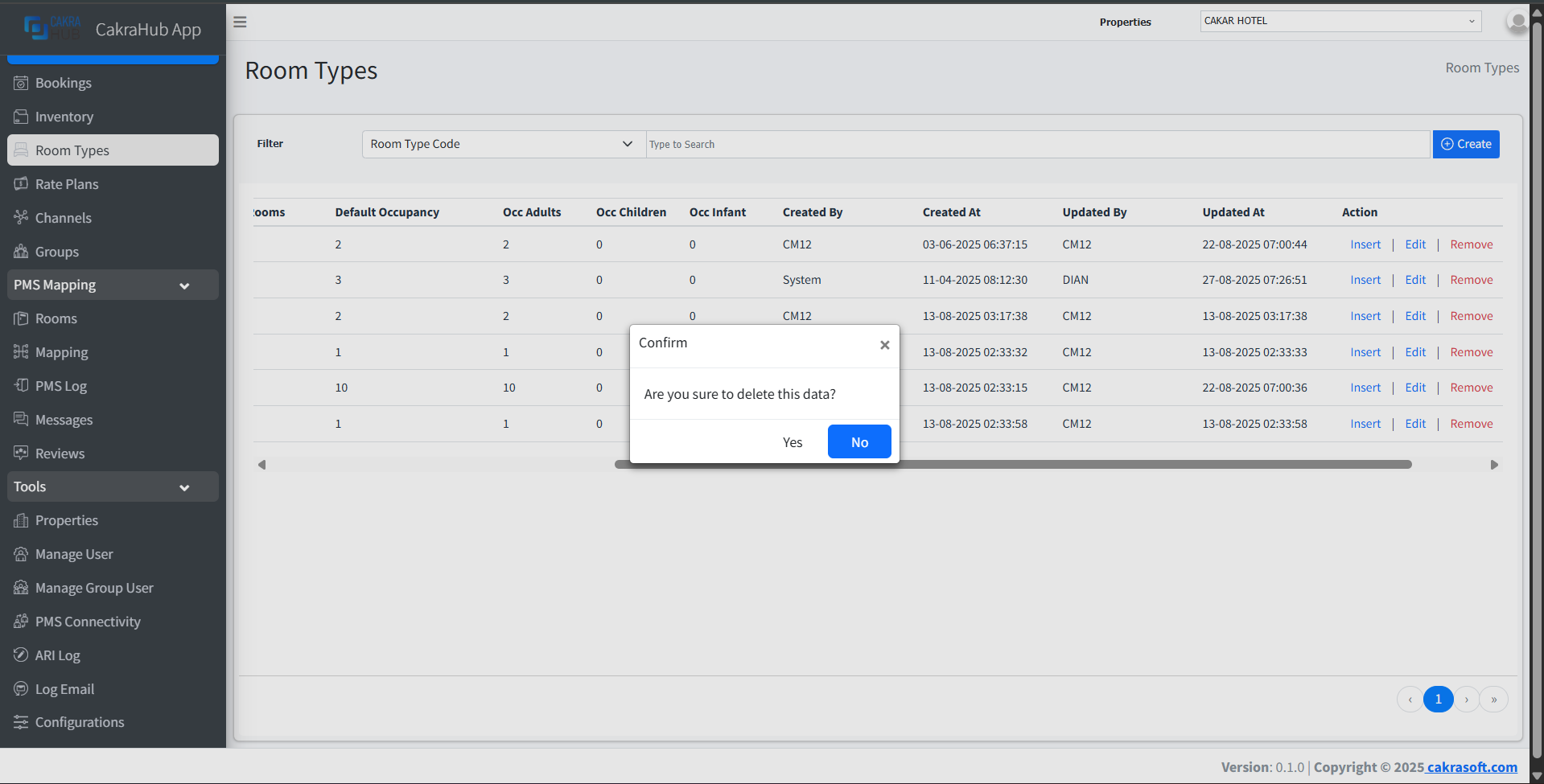
Deleting a room type will delete all related inventory data. Make sure there are no active bookings before deleting.
Room Type Input Form Details
Mandatory Fields (Red Label)
- Room Type Code: Unique code for internal identification
required - Room Type Name: Room type name that will be displayed on OTA
required - Count of Rooms: Number of rooms using that room type
required - Default Occupancy: How many guests can stay in the room by default (without extra spaces). Keep in mind, this field can not be greater than
occ_adultsvalue. Typically this value is set equal to amount of adults.required - Occupancy Adult: How many Adult bed spaces have in this Room Type.
required
Optional Fields
- Occupancy Children: How many Child only bed spaces in this Room Type. Children can sleep in adult beds also. If no Child only beds then set this to 0.
- Occupancy Infant: How many Infants cots available in this Room Type.
PMS Integration
Room Type can:
- Sync with PMS: Use the same name and data as your PMS
- Customized: Create different names and categories for marketing needs
- Flexible Mapping: One PMS room type can be mapped to multiple room types in the system
It is recommended to create room type names that are attractive and easy for guests to understand, even if different from internal codes in PMS.