Mapping
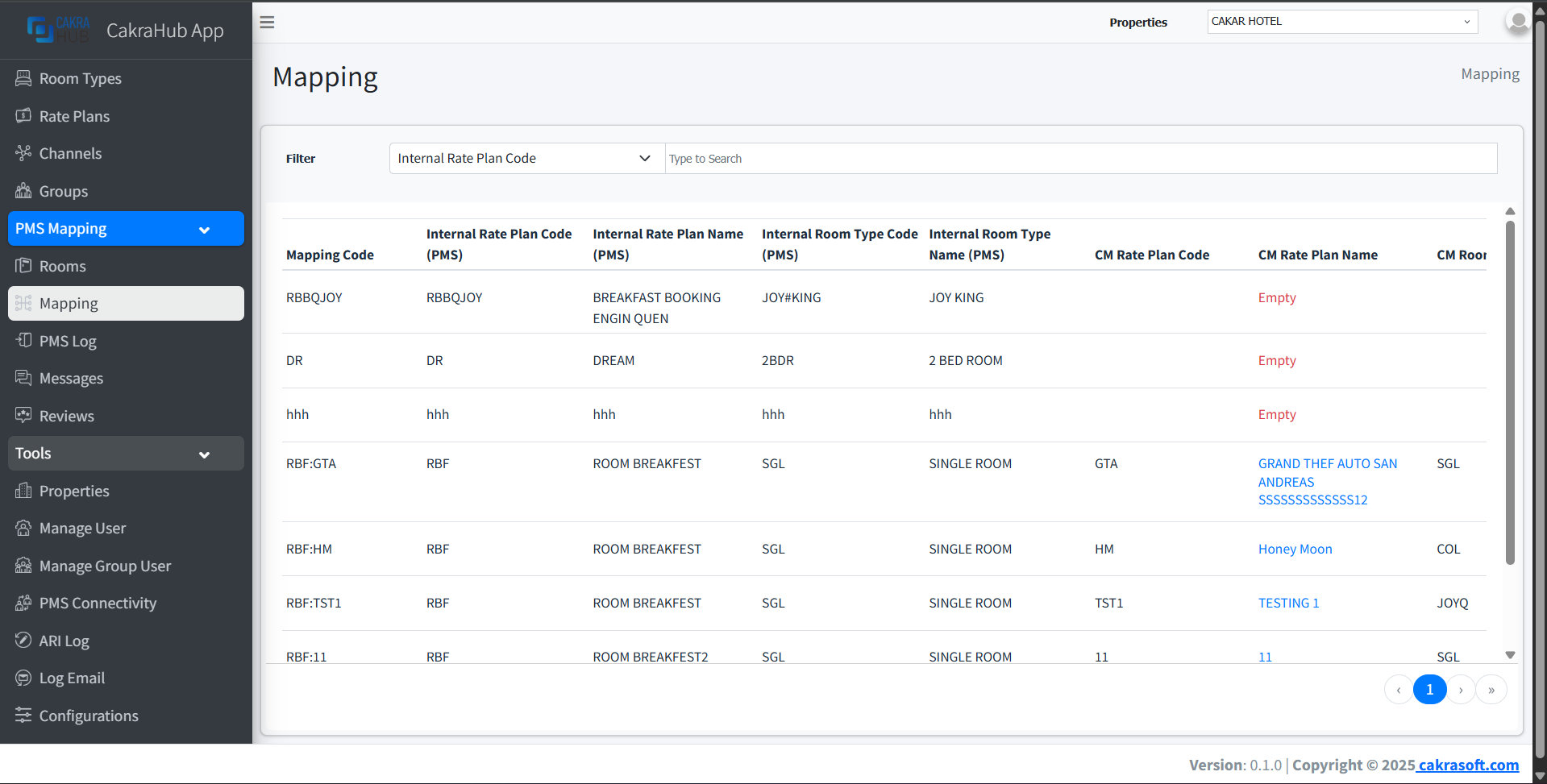
The Mapping menu is the place to map data between Channel Manager (CM) and Property Management System (PMS). All data inputted from the Rooms menu will automatically appear here, making the mapping process easier and more structured.
Why is the Mapping Menu Important?
- Data Automation: Data from the Rooms menu is directly available for mapping
- Consistency: Ensures CM and PMS data are properly connected
- Reset Mapping: Reset feature to release mapping if changes occur
Mapping Management
- Mapping
- Reset Mapping
To perform data mapping:
- Select PMS data you want to map.
- Click on the
Cm Rate Plan Namecolumn → Red list for unmapped data, blue list indicates already mapped and can be updated. - Complete the form according to requirements (Left data for PMS, right for CM).
- Select appropriate CM data.
- If data from CM is
static(Usually from Traveloka there are static rates), you can check the static checkbox, so if there are bookings with room type andStaticrate plan from OTA, that data will automatically be changed to match the PMS data. - Save mapping, data will be directly connected.
Loading gallery...
Automatisasi
The mapped data will be immediately used for the synchronization process between CM and PMS.
To release a mapping:
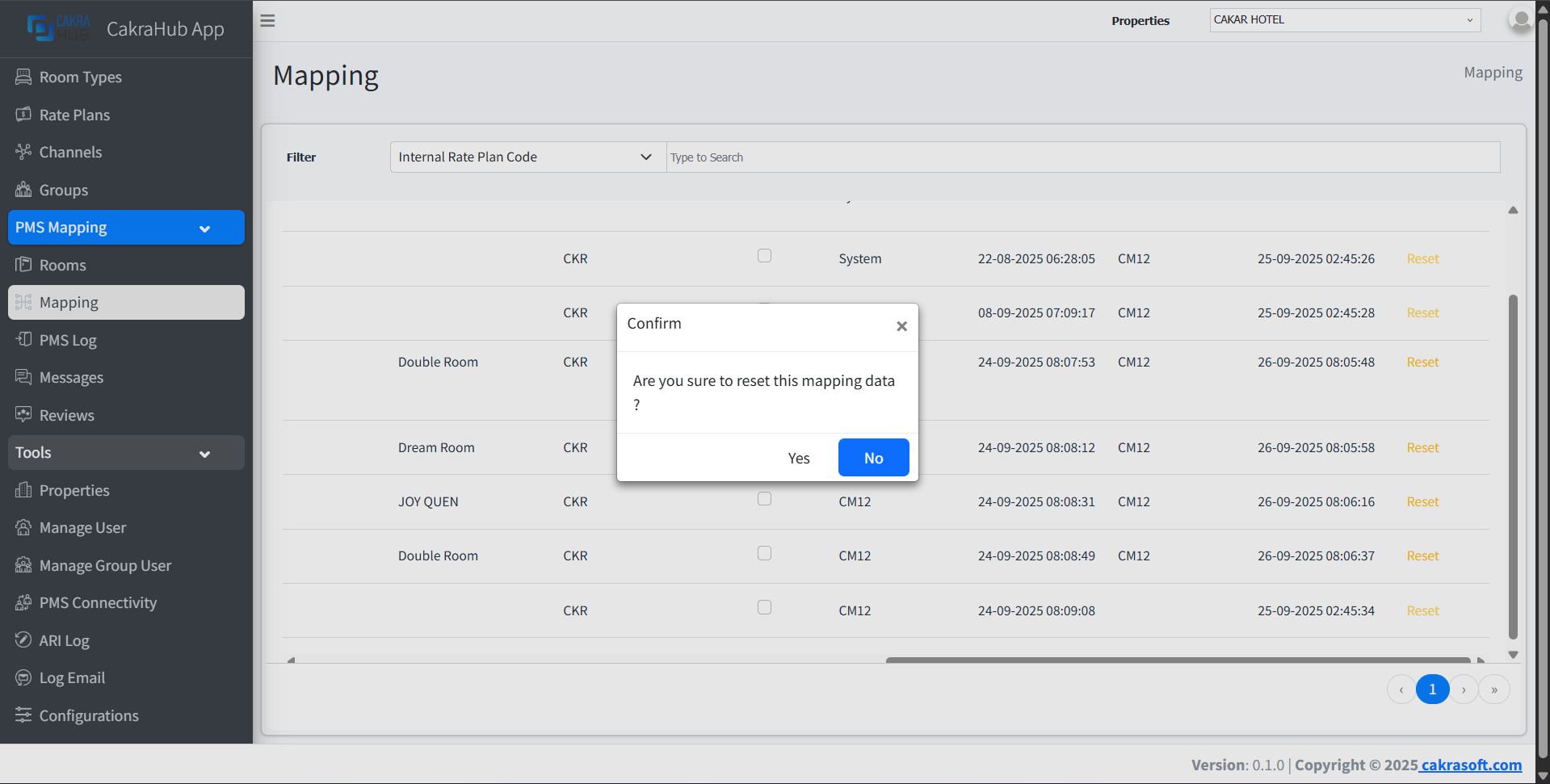
- Click the Reset button on the mapping row you want to release.
- Confirm the reset through the dialog that appears.
- The mapping data will be released and can be remapped.
Warning
Resetting a mapping will disconnect the data between CM and PMS. Make sure there are no active processes before performing a reset.
Detail Mapping
- PMS Room Type Name: PMS room type mapping
- PMS Rate Plan Name: PMS rate plan mapping
- CM Room Type Name: CM room type data
- CM Rate Plan Name: CM rate plan data
Integrasi Otomatis
Every data created in the Rooms menu will automatically appear in the Mapping menu. The mapping process is crucial to ensure CM and PMS data are connected and synchronized.
Best Practice
Perform mapping carefully to avoid data errors between CM and PMS.