Inventory
The Inventory menu is used to manage room availability, rates, and restrictions in real-time to various OTAs (Online Travel Agents).
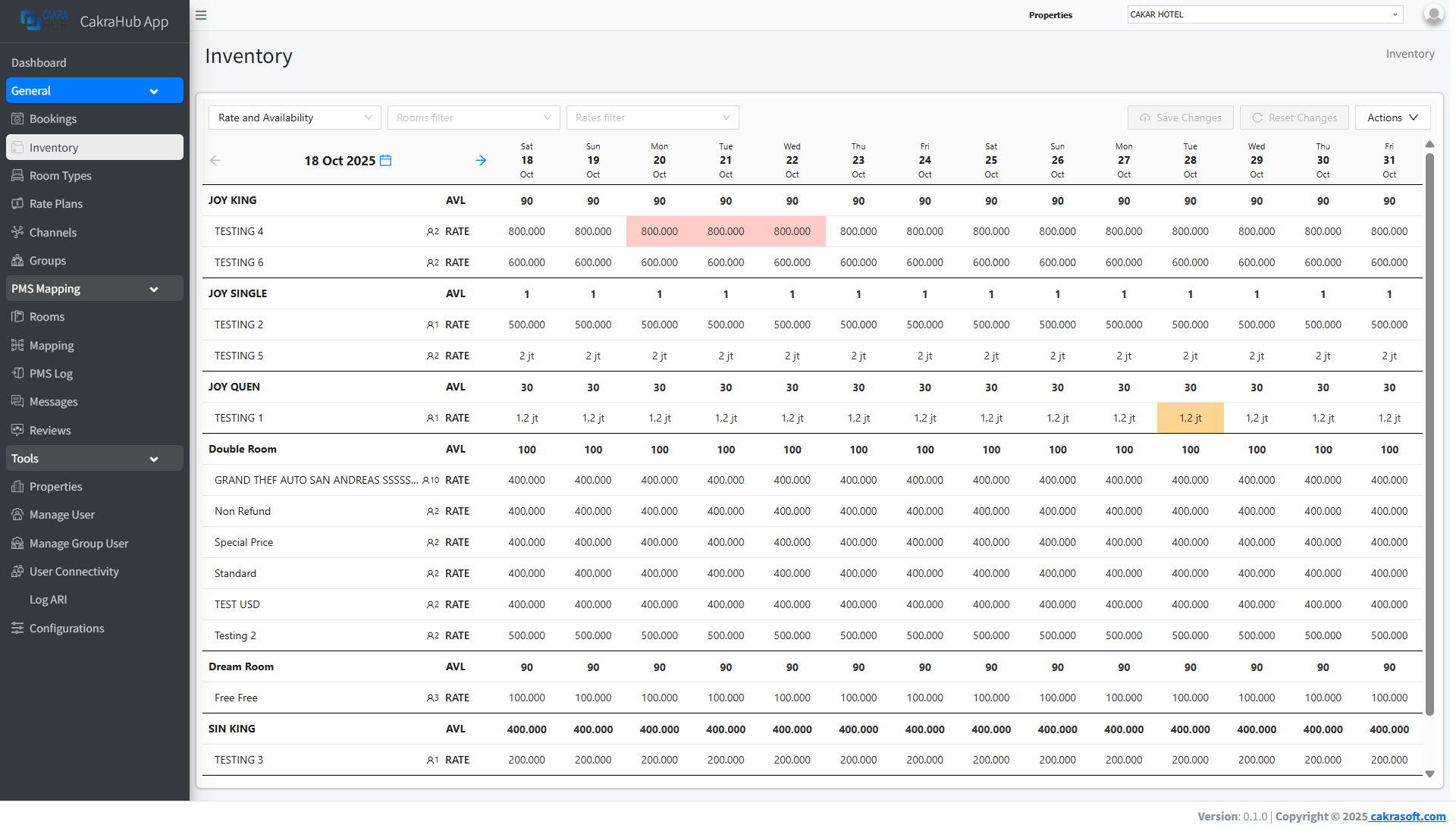
Inventory Features & Usage
- View Inventory
- Update Inventory
- Sinkronisasi
- Log Perubahan
On the Inventory page, you can view all room availability data, rates, and restrictions for each date and room type.
- Table displays date, room type, available quantity, rates, and restrictions (min stay, max stay, etc.).
- Use room rate or room type filters for quick search.
To update inventory data:
- Click on inventory data, you can click rate or availability.
- Input form appears.
- Select the date and room type you want to change.
- Enter the new availability, price, or restriction.
- Save changes, data will be instantly synchronized to all OTAs.
- Date Range: You can select from which date the availability or rate will be updated.
- Restriction: There are restriction options when updating rates such as: close to arrival, close to departure, max stay, min stay, rate, and stop sell, default rate.
Details of Restriction Options:
- Close To Arrival: Restricts guests from checking in on certain dates, but they can still stay if they checked in earlier. Example: If October 25 is set to CTA = ON, guests cannot start their stay on October 25, but those who checked in on October 24 and stay until the 26th are allowed.
- Close To Departure: Restricts guests from checking out on certain dates. Example: If December 31 is set to CTD = ON, guests cannot end their stay on December 31, but can stay past that date (e.g., checkout January 1).
- Max Stay: Sets the maximum number of nights a guest can book. Example: If Max Stay = 5, guests can only book up to 5 consecutive nights.
- Min Stay: Sets the minimum number of nights a guest must book. Example: If Min Stay = 3, guests cannot book just 1 or 2 nights, must book at least 3 nights.
- Rate: The nightly price (rate) sent to OTAs via Channel Manager. Usage: This is the selling price that will appear on OTAs like Booking.com, Agoda, Traveloka, etc.
- Stop Sell: Closes room sales on certain dates, meaning no rooms can be booked on OTAs for those dates. Example: If Stop Sell = ON for December 20, that date will be closed on all OTAs—even if rooms are still available internally.
Bulk Update & Availability Rules
Bulk Update is a feature to change multiple data (rate, availability, restrictions, stop-sell, inventory allocation, mapping, etc.) at once for a date range, many room types, or many channels/OTAs in a single action.
Main purposes:
- Save operator time compared to changing one-by-one.
- Maintain consistent settings across many channels.
Components commonly updated in bulk:
- Availability / Inventory (number of rooms available)
- Stop Sell (close sales)
- Min Stay / Max Stay (stay restrictions)
- Close To Arrival / Close To Departure
- Rate Plan Assignment (change rate plan for many dates)
- Promotions / Discounts (apply mass discounts)
- Channel selection — target all OTAs or a subset (e.g. Booking + Agoda)
Availability Rule is a way to setup Availability Overrides for specific Room Types and Channels. This feature can be useful if you would like to close out some specific channel, decrease Availability or set Max Availability for it.
Example of use cases:
- Stop sales for Christmas vacation at Channel A
- Set Max Availability for Room Type A at Channel B
Detailed Explanation:
- Affected Dates: Here you should set the date range for the rule, you can set many years ahead if you want to set for a long time
- Type: Close Out, Availability Offset, Max Availability (Details below what each of these means)
- Affected Channels: You need to select which OTA this rul applies to
- Room Types: Choose which room types this rule affects.
Close Out This is used if you want to stop giving availability for this OTA on the selected dates
Example: You want to block all of August to Expedia as you are busy with direct sales instead.
Max Availability This setting will limit the availability for the room
Example: If you have 10 rooms and set Max Availability to 5 then the channel will only see 5 rooms available even if you have 10 total. If one room is booked and now 9 total is left the channel will still get an update to show 5. It will work like this until the total available is less than the max available rooms and then it will work as normal.
Typical Use Cases:
-
Limit rooms available so you don't get large group bookings
-
Limit rooms available so rooms look more scarce on the channel
Availability Offset This setting just applies a negative amount to the availability, you don't need to enter a negative sign. If you set "2" to the offset and you have 10 double rooms total then you will have 10 - 2 = 8 rooms to sell. Once you have 2 rooms left you end up with 0 rooms left (2 - 2 = 0)
Use Case:
- Stop giving availability to some high commission channels when only a few rooms left
- Give last room availability to selected channels or own website
All inventory changes will be automatically synchronized to OTAs.
- No need to manually update each OTA.
- You can click the blue chain icon to see details of OTAs connected to that rate.
- In this menu, you can also see the rate sent to each OTA.
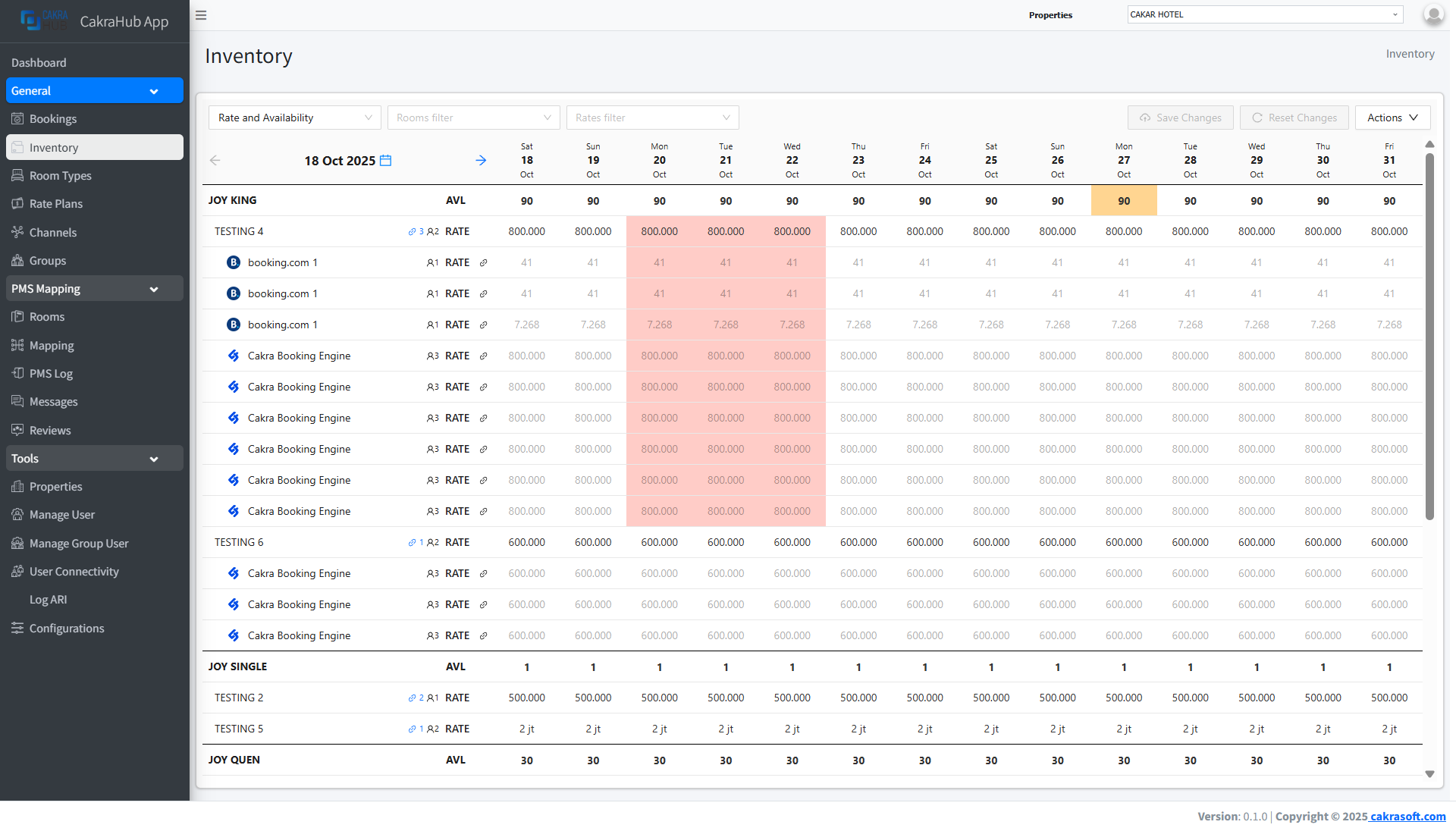
You can view the history of inventory changes:
- Logs are available showing who made changes, when, and the details.
- Helps with auditing and troubleshooting if there are issues with availability/pricing on OTAs.
Additional Information
- Real-Time Update: Every change is immediately sent to all connected OTAs.
- Multi-Property: Manage inventory for multiple properties in one dashboard.
- Data Security: Only authorized users can change inventory.
The inventory menu is crucial to ensure room availability and prices on all channels are always accurate and up-to-date.