Log ARI
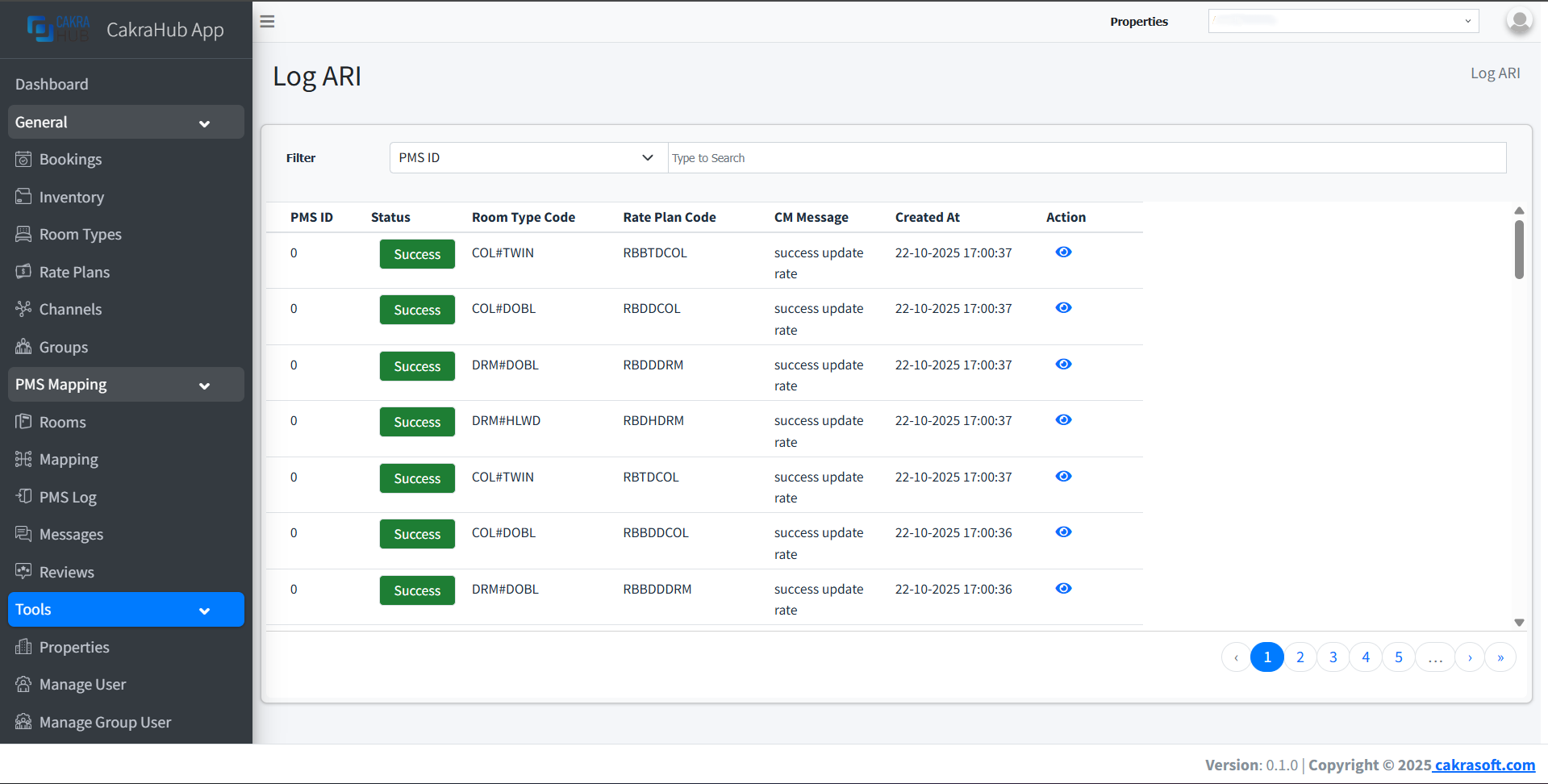
The Log ARI menu is used to monitor the status of ARI (Availability, Rate, Inventory) data transmission from PMS to Channel Manager. With this menu, you can see whether ARI data was successful or failed, making the integration monitoring process more transparent and easy to monitor.
Why is the Log ARI Menu Important?
- Real-Time Monitoring: View ARI data transmission status to CM directly
- Process Transparency: Know details of ARI data that succeeded or failed
- Troubleshooting: Facilitate identification of ARI integration issues
Log ARI Management
- View Log
To view details of ARI logs sent by PMS:
- Open the Log ARI menu.
- Select the data you want to view and click the
eyeicon. - You can see the
JSONformat sent by PMS.
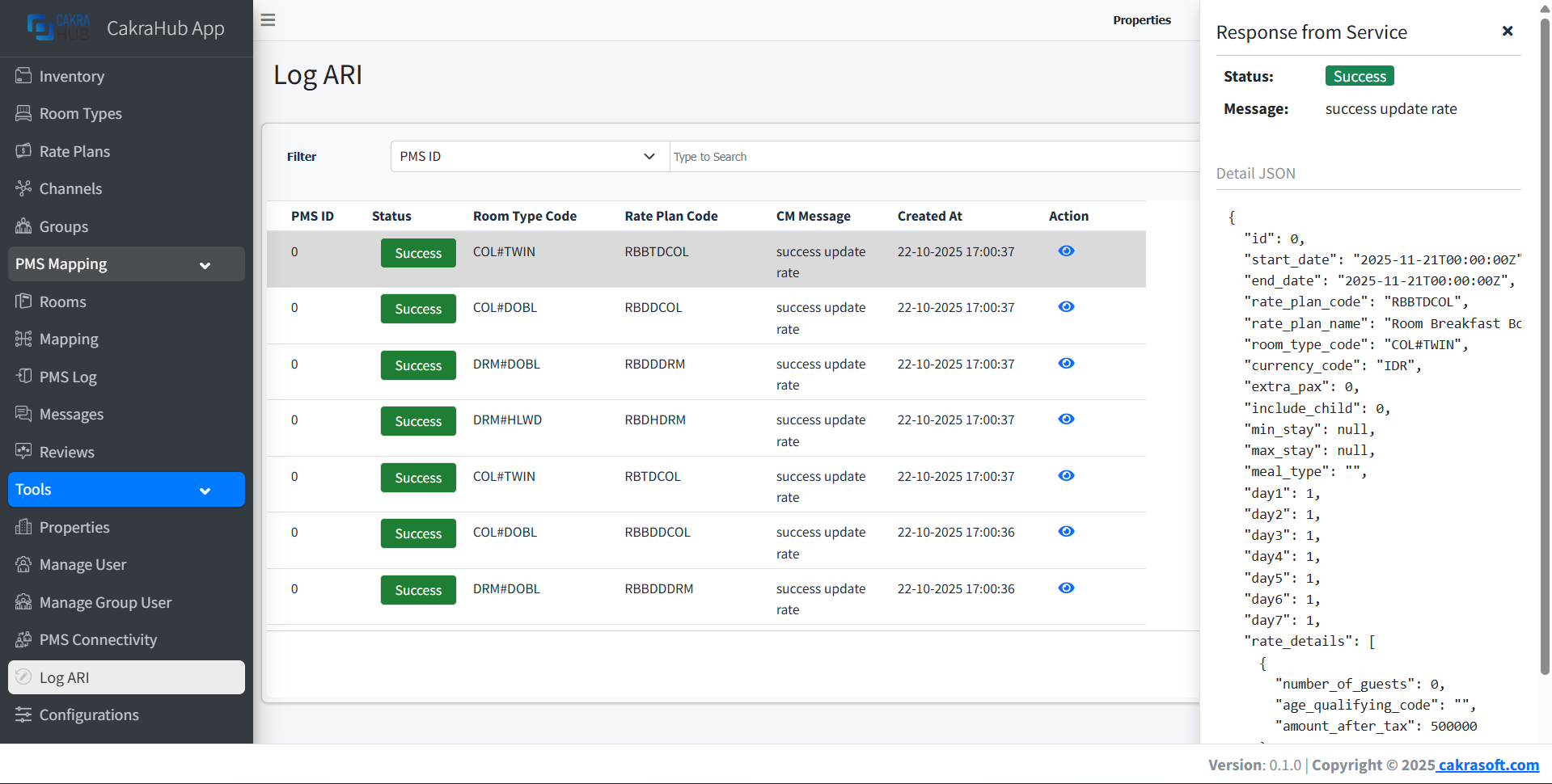
ARI data status will be displayed in real-time according to transmission results to PMS. Always check the details of data sent by PMS to facilitate tracking issues.
Log ARI Details
- PMS ID: Internal ID that exists in PMS.
- Status: Status of data sent by PMS (success, failed).
- Room Type Code: Room type code.
- Rate Plan Code: Rate plan code.
- CM Message: Message returned by CM.
- Action: To view detailed
JSONdata sent by PMS.
PMS Integration
The Log ARI menu is very important to ensure all ARI data sent to PMS is recorded and its status can be monitored. If problems occur, you can directly troubleshoot based on available logs.
Always check Log ARI regularly to ensure ARI data integration runs smoothly and no data fails.