Properties
The Properties menu is used to display a list of properties, add, edit, or delete property data.

Create, Update, Delete Properties
- Create
- Update
- Remove
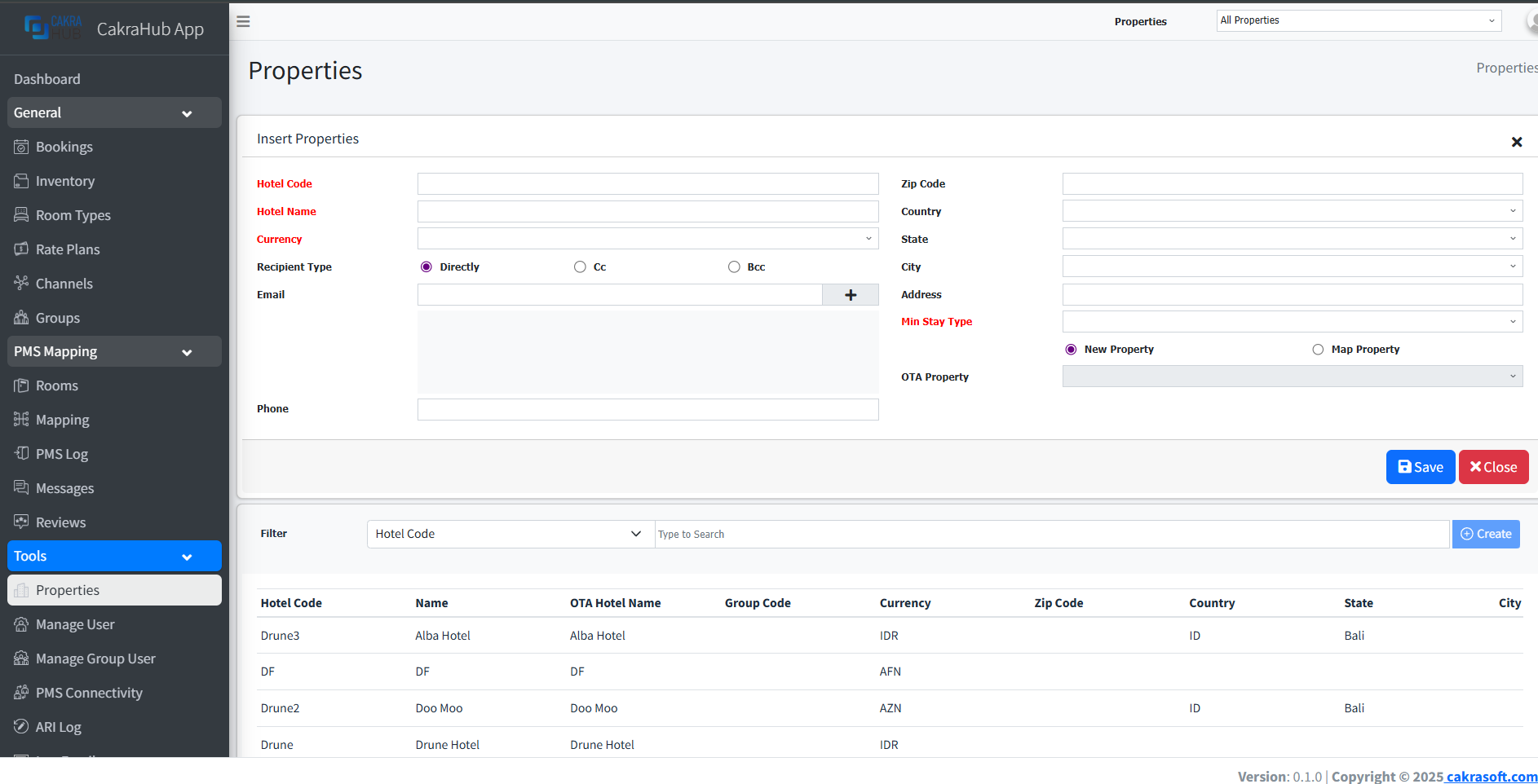
To add a property, you can press the create button in the upper right corner to bring up the form for entering the required property data.
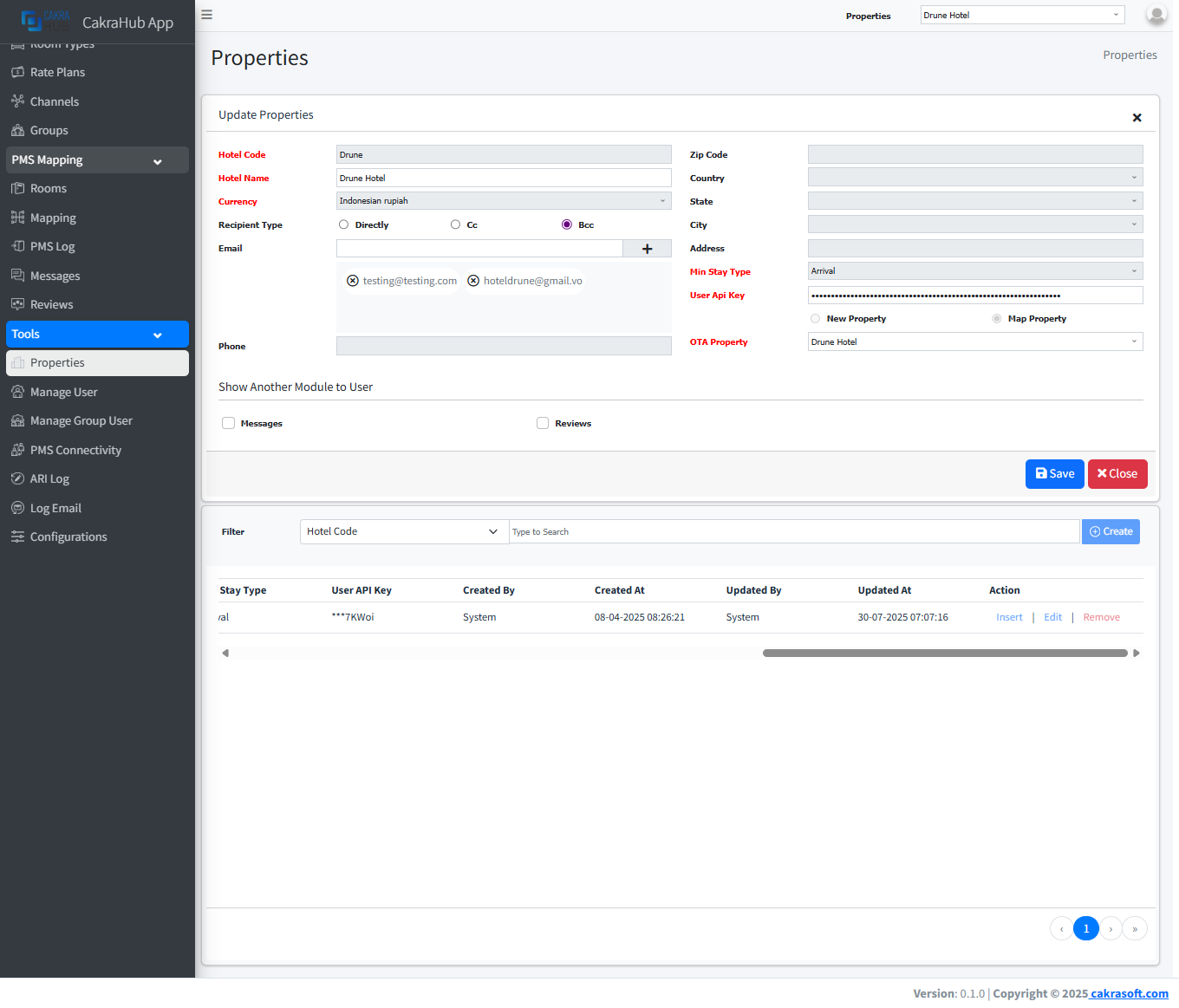
This form appears when you press the edit button in the action column (on the far right of the table).
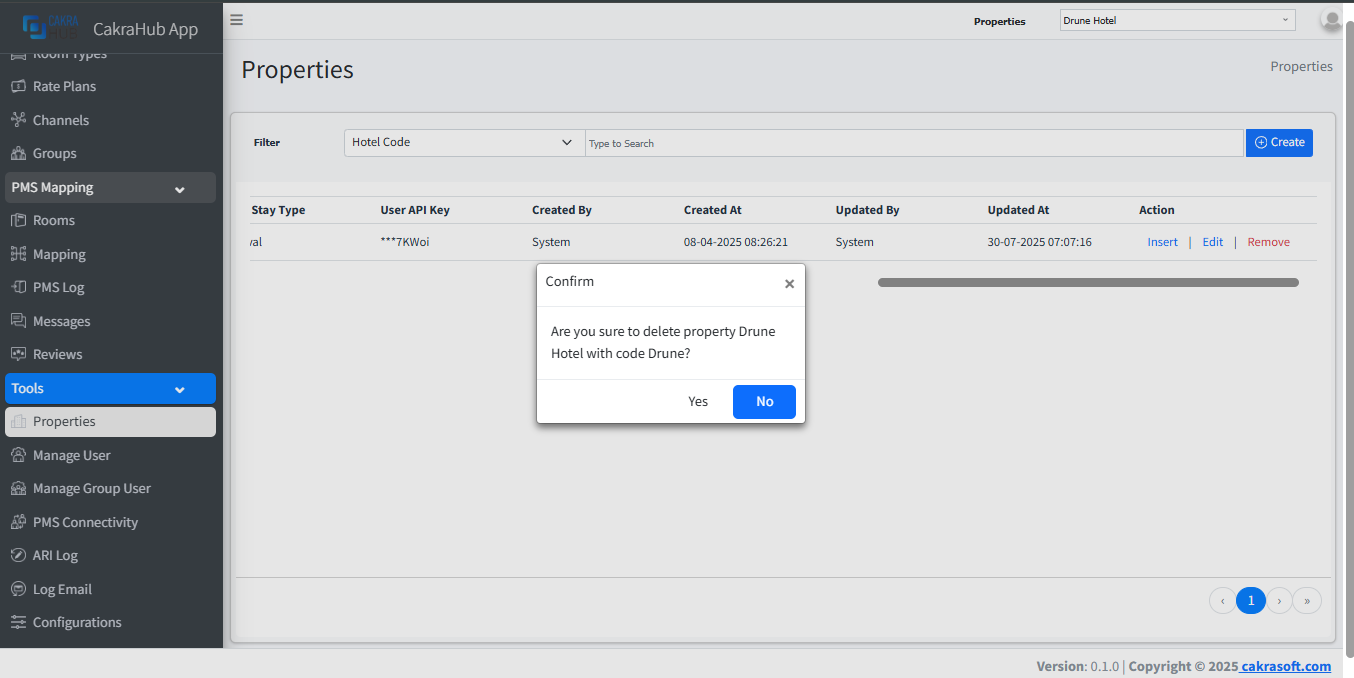
When you press the remove button in the action column (on the far right of the table), a notification/information will appear to confirm whether you are sure you want to delete the property.
Details Form Input
- Hotel Code: code for property.
required - Hotel Name: Property Name.
required - Currency: Select a compatible currency for that property.
required - Recipient Type: There are three options for email delivery settings: directly, Cc, and Bcc, depending on the property requirements.
- Email: Email to send notifications to hotels if there are bookings (new, modified, canceled). Any number of emails can be added, depending on the property's needs.
- Phone: Property phone
- Zip Code: property zip code or postal code, maximum length of 32 symbols.
- Country: Select Country.
- State: Maximum length of 255 symbols.
- City: Maximum length of 255 symbols.
- Address: Maximum length of 255 symbols.
- Min Stay Type: To control simplified Min Stay restrictions. Can be useful for situation when your system support only one of Min Stay Types (Arrival or Through).
If your system work only with Min Stay Arrival or only with Min Stay Through you can setup that setting into arrival or through mode, as result we will simplify ARI updates and allow provide min stay changes under min_stay key and automatically setup correct selection for Min Stay type at Channel mappings. Possible values: arrival, through. default: arrival
required - OTA Property: This select form has two functions. If the property is being created for the first time, you can select New Property in the radio button. If the property has already been created and you want to use the previous data, you can select Map Property in the radio button and select the property in the OTA Property select section. The property list will automatically appear. This is commonly used for Omni connections with PMS Cakra.
- Messages: checkbox type, check if you want to add a Messages menu to the property.
- Reviews: checkbox type, check if you want to add a Reviews menu to the property.
When you click the edit action, an input form will appear with additional check boxes for Messages and Reviews.
These check boxes are used to add new menus, specifically the Messages and Reviews menus, which are used to receive messages directly from guests and also to view reviews of the property from guests who have stayed there. Of course, there is an additional fee if the property wants to add these menus.